How to Scrape Google Images with Python
Images are a crucial part of modern businesses, whether for машинное обучение, content generation, digital marketing, or research. Companies across various industries require large datasets of images to train AI models, analyze trends, or enrich their content. Manually collecting these images is time-consuming, which is where Google Image Scraping comes into play.
In this guide, we’ll explore how to scrape Google Images with Python using various methods, including requests, BeautifulSoup, и Селен. Additionally, we will introduce an easier and more efficient alternative—Google Image Search API—for seamless image extraction at scale.
Setting Up Your Python Environment for Web Scraping
Before we start coding, let’s install the necessary libraries for scraping Google Images.
Install Required Python Libraries
Open your terminal or command prompt and install the following packages:
pip install requests
pip install beautifulsoup4
pip install selenium
pip install pillow
pip install webdriver-manager
What Do These Libraries Do?
requests– Fetches the HTML content of web pages.BeautifulSoup4– Parses HTML and extracts useful information like image URLs.Селен– Automates browser interaction to scrape dynamic content.Pillow– Handles image processing and storage.webdriver-manager– Automatically manages the installation of WebDriver for Selenium.
Inspecting Google Images for Scraping
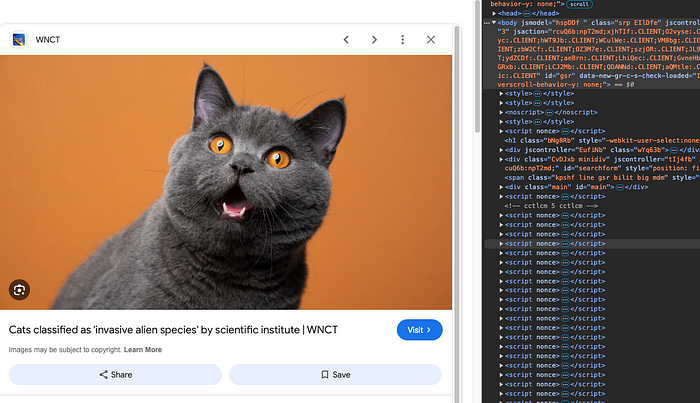
Before writing the scraper, let’s inspect Google Image Search results to understand how images are loaded.
Steps to Inspect Google Images
- Open Google Images and search for a keyword (e.g., “sunset images”).
- Right-click an image и выберите Inspect (or press
Ctrl Shift Iin Chrome). - Look for the
srcилиdata-srcattributes. - Scroll down to see how Google loads more images dynamically using JavaScript.
Because images are dynamically loaded, we need Селен to scroll down and extract all image URLs.
Method 1: Scraping Google Images Using BeautifulSoup
The simplest way to scrape images is by fetching the HTML content and extracting
Python Code for Scraping Static Google Images
импорт requests
с сайта bs4 импорт BeautifulSoup
импорт os

# Define the search query
query = "sunset images"
search_url = f"https://www.google.com/search?q={запрос}&tbm=isch"

# Set headers to mimic a real browser
заголовки = {"User-Agent": "Mozilla/5.0"}

# Fetch the page content
response = requests.get(search_url, headers=headers)
soup = BeautifulSoup(response.text, "html.parser")

# Extract image URLs
image_tags = soup.find_all("img")

# Create directory to store images
os.makedirs("изображения", exist_ok=Правда)

# Download and save images
для i, img в enumerate(image_tags):
    img_url = img.get("src")
    если img_url:
        img_data = requests.get(img_url).content
        с открыть(f"images/image_{i}.jpg", "wb") в роли f:
            f.write(img_data)

печать("Images downloaded successfully!")
Limitations of This Approach
- Google dynamically loads images using JavaScript, which
requestsalone cannot handle. - Many images are stored as thumbnails; high-resolution versions need additional requests.
To handle these limitations, we use Селен.
Since Google Images uses lazy loading (loading images as the user scrolls), we need Селен to scroll down and extract full-resolution image URLs.
Python Code for Scraping Images with Selenium
с сайта селен импорт webdriver
с сайта selenium.webdriver.common.by импорт По ссылке
с сайта selenium.webdriver.chrome.service импорт Service
с сайта webdriver_manager.chrome импорт ChromeDriverManager
импорт время
импорт os

# Set up Selenium WebDriver
options = webdriver.ChromeOptions()
options.add_argument("--headless")  # Run in headless mode
options.add_argument("--disable-blink-features=AutomationControlled")
driver = webdriver.Chrome(service=Service(ChromeDriverManager().install()), options=options)

# Define search query
query = "sunset images"
search_url = f"https://www.google.com/search?q={запрос}&tbm=isch"

# Open Google Images
driver.get(search_url)
time.sleep(2)  # Wait for images to load

# Scroll down multiple times to load more images
для _ в ассортимент(5):
    driver.execute_script("window.scrollTo(0, document.body.scrollHeight);")
    time.sleep(2)

# Extract image URLs
image_elements = driver.find_elements(By.CSS_SELECTOR, "img")
image_urls = [img.get_attribute("src") для img в image_elements если img.get_attribute("src")]

# Create directory and save images
os.makedirs("selenium_images", exist_ok=Правда)

для i, img_url в enumerate(image_urls):
    img_data = requests.get(img_url).content
    с открыть(f"selenium_images/image_{i}.jpg", "wb") в роли f:
        f.write(img_data)

печать("Images downloaded successfully!")

driver.quit()
Advantages of Using Selenium
- Handles JavaScript-rendered images.
- Scrolls dynamically to load more images.
- Extracts high-resolution versions of images.
Method 3: Scraping Google Images with “Google Image Search API”
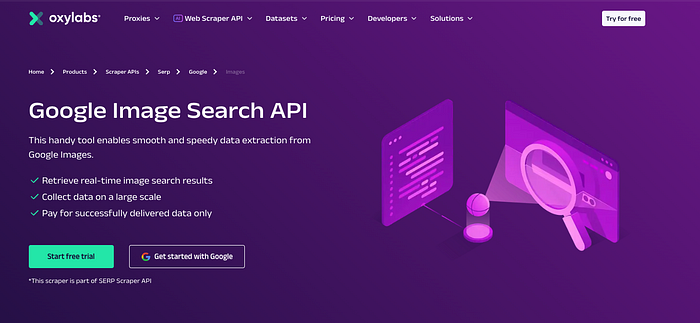
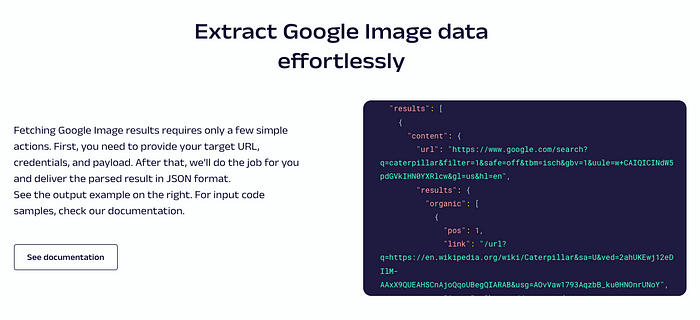
For this tutorial, we will use Oxylabs’ Google Image Search API to fetch Google Images related to a specific query. This Google Image scraper allows us to retrieve image URLs, titles, descriptions, and the pages where these images are hosted.
Unlike manual web scraping methods using Selenium or BeautifulSoup, which can lead to CAPTCHAs and IP bans, Oxylabs’ Google Image Search API ensures seamless, automated image retrieval without getting blocked.
Step 1 — Setting Up the Environment
To get started, ensure you have Python 3.6 installed and running on your system. We also need the following libraries to interact with the API and process the results:
requests– For making HTTP requests to Oxylabs' API.панды– For storing and structuring the extracted image data.
To install these packages, run the following command:
pip install requests pandas
Step 2 — Importing Required Libraries
Create a new Python file and import the necessary libraries:
импорт requests
импорт панды в роли pd
Step 3 — Structuring the API Payload
Oxylabs Google Image Search API allows users to customize their search queries using various parameters. The following payload structure helps us fetch relevant images:
полезная нагрузка = {
    "source": "google_images",
    "domain": "com",
    "query": "sunset",
    "parse": "правда",
    "geo_location": "United States",
    "context": [
        {
            "key": "search_operators",
            "value": [
                {"key": "filetype", "value": "jpg"},
                {"key": "inurl", "value": "изображение"},
            ],
        }
    ],
}
Breaking Down the Payload Parameters:
источник: Specifies the data source (Google Images).domain: Sets the Google domain (com,uk,de, etc.).запрос: Defines the search term (e.g.,"sunset").разбор: When set totrue, the results are returned in structured JSON format.geo_location: Restricts search results to a specific country (e.g.,"United States").context: Allows applying search filters.filetype: Limits results to a specific image format (e.g.,"jpg").inurl: Ensures images are stored under a specific URL structure (e.g.,"изображение").
Step 4 — Making the API Request
To fetch the images, we send a POST request to Oxylabs’ API endpoint with authentication credentials:
USERNAME = ""
PASSWORD = ""

response = requests.post(
    "https://realtime.oxylabs.io/v1/queries",
    auth=(USERNAME, PASSWORD),
    json=payload
)

# Extract results
data = response.json()
Make sure to replace и with your Oxylabs API credentials.
Step 5 — Extracting and Saving Image Data
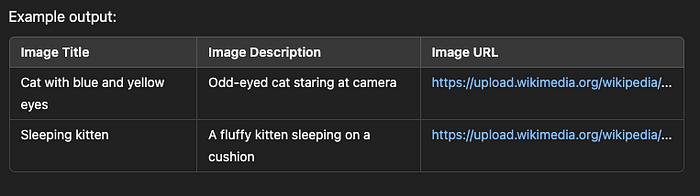
The response contains structured image data, including image URLs, titles, and descriptions. We extract this information and store it in a Pandas DataFrame for easy processing.
# Extracting image details
results = data["results"][0]["content"]
image_results = results["results"]["organic"]

# Create a DataFrame to store the images
df = pd.DataFrame(columns=["Image Title", "Image Description", "URL изображения"])

для img в image_results:
    title = img.get("title", "No Title")
    description = img.get("desc", "No Description")
    url = img.get("url")

    df = pd.concat(
        [pd.DataFrame([[title, description, url]], columns=df.columns), df],
        ignore_index=True,
    )

# Save the data to CSV and JSON files
df.to_csv("google_images.csv", index=False)
df.to_json("google_images.json", orient="split", index=False)

печать("Image data saved successfully!")
Step 6 — Example Use Case
Let’s say we want to scrape images of cats from Google Images while ensuring that the search results are restricted to images hosted on Wikipedia. We can modify the запрос и context parameters accordingly:
полезная нагрузка = {
    "source": "google_images",
    "domain": "com",
    "query": "https://upload.wikimedia.org/wikipedia/commons/a/a3/June_odd-eyed-cat.jpg",
    "parse": "правда",
    "geo_location": "United States",
    "context": [
        {
            "key": "search_operators",
            "value": [
                {"key": "site", "value": "wikipedia.org"},
                {"key": "filetype", "value": "jpg"},
                {"key": "inurl", "value": "изображение"},
            ],
        }
    ],
}
Сайт site search operator ensures that results are only from wikipedia.org. The filetype filter guarantees that we receive JPG images.
Step 7 — Viewing and Exporting the Data
Once the request is processed, the extracted image data is saved in CSV and JSON formats for easy access.
Why Use Oxylabs’ Google Image Search API?
While Python-based scraping methods using Selenium and BeautifulSoup can work, they come with significant challenges:
- IP blocks and CAPTCHAs require constant workaround.
- Google’s dynamic loading makes scraping unreliable.
- Frequent website changes break scrapers, requiring ongoing maintenance.
Advantages of Oxylabs’ API Over Manual Scraping
- Bypasses CAPTCHA & Bot Detection — No need for proxies or CAPTCHA solvers.
- Scalable Solution — Handles large-scale image scraping without IP bans.
- Fast & Efficient — Returns high-resolution images with minimal delays.
- Structured Data Output — Eliminates the need for manual HTML parsing.
- Easy Integration — Simple POST requests provide ready-to-use results.
Instead of worrying about Google’s bot protection, Oxylabs’ Google Image Search API provides a hassle-free, scalable, and legal way to scrape Google Images efficiently.
Заключительные размышления
Scraping Google Images with Python is a good choice if you using Selenium, BeautifulSoup, and Requests, but it comes with limitations. IP blocks, CAPTCHA challenges, and JavaScript rendering issues make manual scraping time-consuming and unreliable.
For a faster, more efficient, and scalable solution, Oxylabs’ Google Image Search API is the best choice. With ready-to-use structured results, CAPTCHA-free access, and full automation, it’s the ideal tool for businesses and developers who need high-quality image data.